Trainer Guide
| Site: | Family Medicine |
| Course: | Family Medicine |
| Book: | Trainer Guide |
| Printed by: | |
| Date: | Tuesday, November 24, 2026, 2:54 AM |
1. Accessing the Platform
This section explains how to access the learning platform and navigate the main areas available to supervisors. These tools allow you to monitor trainee progress, access assigned courses, and stay updated on relevant learning activities.
1.1 Logging into the Platform
To access the learning platform, follow the steps below.
Steps
Open the learning platform URL.
Click Log in through Mumaris.

Once you are logged in, complete the information requested in the required fields.
1.2 Navigating the Platform
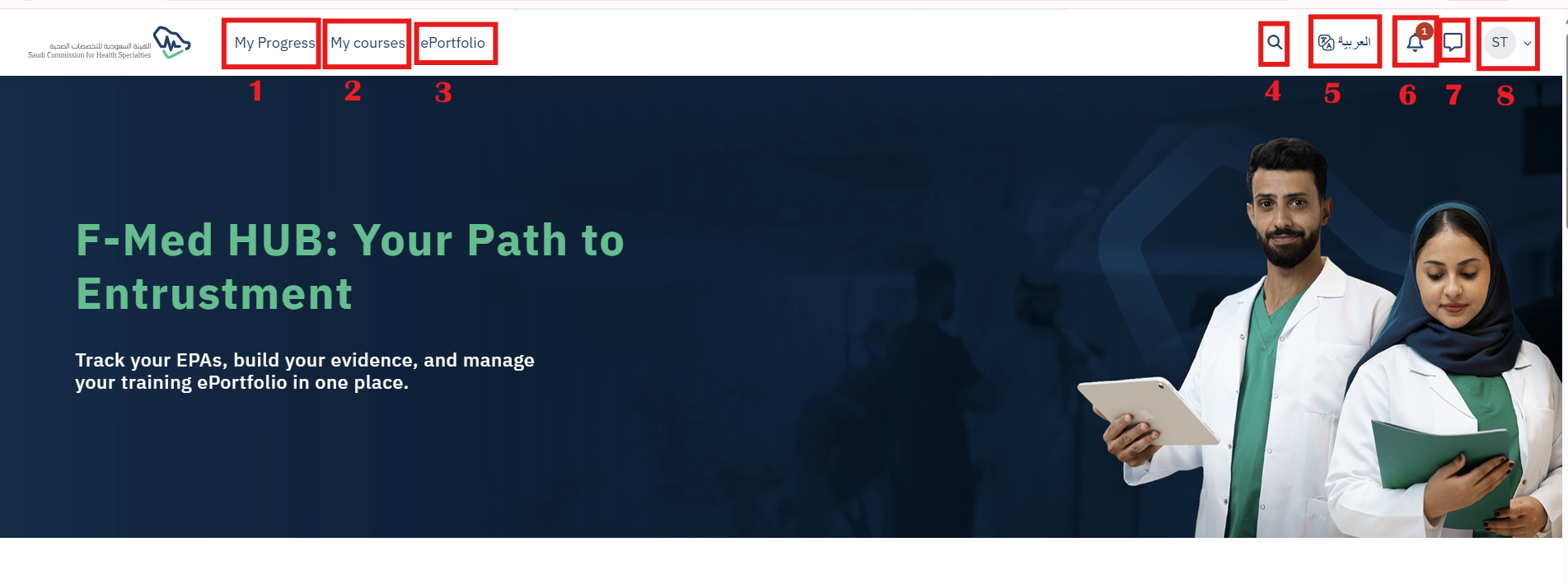
My Progress
View the trainee’s learning journey and track their training activities, completion status, and overall progress across the platform.
My Courses
Access the courses where you are assigned as a supervisor. From here, you can follow learner participation, review course activities, and support learners without modifying course content or settings.
ePortfolio
This feature allows trainees to access and manage available portfolio evidence and learning records associated with their training activities.
Search
Find courses, content, and other information available on the platform using the search functionality.
Language
Change the platform interface language to Arabic.
Notifications
Check this area to stay updated on important course activities, such as announcements, assignment updates, forum interactions, and other relevant alerts.
Messages
Access Moodle’s messaging area to view and manage conversations with other users, depending on the communication settings available on the platform.
User Profile Menu
Explore your account options, including your profile information, preferences, personal settings, and other available features related to your user account.
Understanding the platform navigation areas will help you efficiently monitor trainee activities and access the tools available to support the learning process.
2. Viewing Your Assigned Trainees
This section explains how supervisors can access their assigned trainees and review trainee information to support monitoring, guidance, and learning follow-up.
2.1 Accessing Assigned Trainees
Supervisors can access the list of trainees assigned to them through the platform’s supervisory area.
Navigation path
My Progress → Assigned Trainees
This section provides an overview of the trainees linked to the Supervisor according to the configured supervisory structure.
Supervisors should use this area to monitor and support only the trainees assigned to them.
2.2 Viewing Trainee Information
Select a trainee through the following path:
Course → Participants → Select trainee
You can access different information related to the trainee, including:
Profile Information
Basic details about the trainee.
Training Information
Courses, programs, or learning activities associated with the trainee.
Progress Overview
Completion status and learning progress.
Assessment Status
Information about completed or pending assessments.
Grades
Results and performance information from assessed activities.
ePortfolio
Access to available portfolio evidence and records, where applicable.
Reviewing trainee information helps supervisors follow trainee development and provide appropriate guidance throughout their training journey.
3. Assessments and Workplace-Based Assessments (WBAs)
This section explains how supervisors can review trainee submissions, evaluate assessment results, provide feedback, and complete grading activities.
3.1 Grading the Assessment
Follow the steps below to review and grade a trainee assessment.
Open the trainee submission.
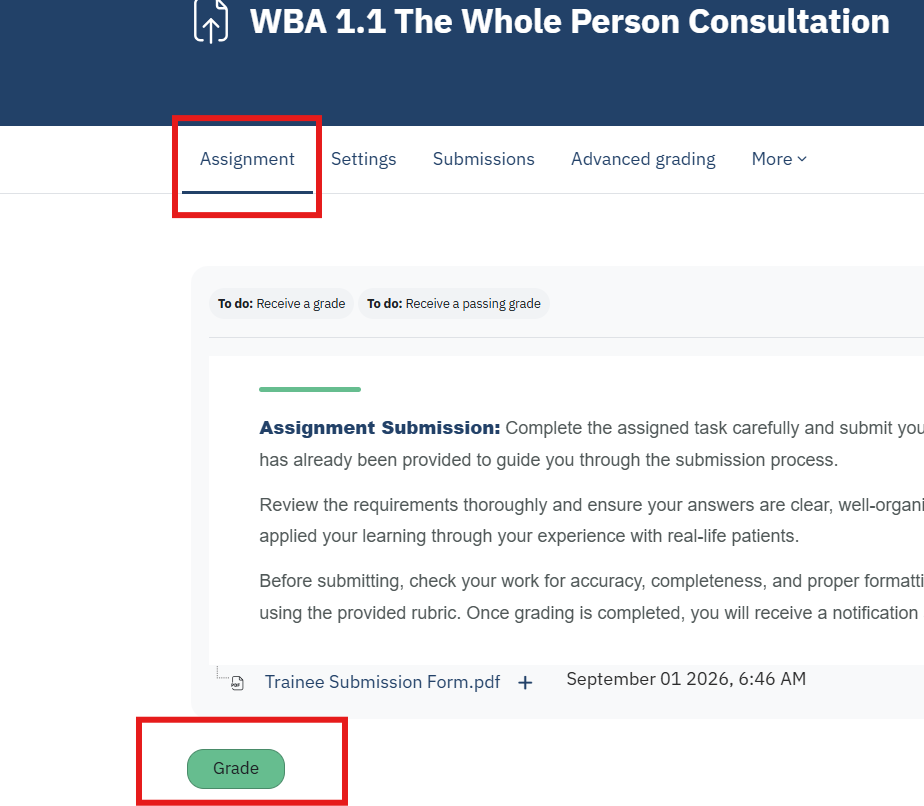
Review the submitted evidence.
Select Grade.
Enter the appropriate grade or assessment result based on the Rubrics.
Add feedback where required.
Complete any applicable assessment fields.
Save the assessment.
Completing assessments accurately and providing meaningful feedback helps support trainee development and ensures progress is properly documented.
4. Providing Feedback and Approvals
This section explains how to provide feedback through the assessment or WBA grading interface and highlights important considerations when approving or signing off trainee assessments.
4.1 Providing Feedback
Feedback should be entered directly through the assessment or WBA grading interface.
Important: Only approve or sign off an item after reviewing the relevant trainee evidence. Once an approval is submitted, the trainee's progress or assessment status may be updated automatically.
Providing clear and accurate feedback supports trainee development and ensures that assessment outcomes are properly documented.
5. Reviewing the Trainee ePortfolio
This section explains how to access the ePortfolio and manage learning records, achievements, and evidence collected throughout the training journey.
5.1 Accessing the ePortfolio
The ePortfolio can be accessed directly from the user area.
To access your ePortfolio:
Select ePortfolio.
You will be redirected to your personal portfolio space.

The ePortfolio provides a dedicated environment where trainees can manage their learning records, achievements, and evidence collected during their training.
The ePortfolio helps trainees maintain a record of their learning journey and organise evidence of their completed training activities.
6. Reports
This section explains how supervisors can monitor trainee progress and access reports related to learning activities, course completion, and assessment results.
6.1 Trainee Progress Reports
Supervisors can monitor trainee progress through the platform by accessing the My Progress area.
By selecting My Progress, supervisors can view relevant information about their assigned trainees, including:
Activity Completion
Track the completion status of learning activities assigned to trainees.
Course Completion
Monitor the completion status of assigned courses.
Grades
Review trainee results and performance information from assessed activities.
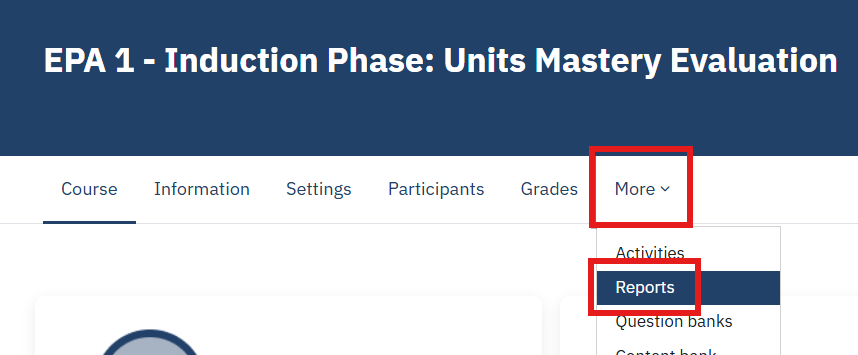
Trainee progress information can also be accessed through the individual trainee profile and the "My Progress" section in the toolbar of the course.
These reports help supervisors follow trainee development, identify pending activities, and provide appropriate support throughout the training journey.
Using progress reports allows supervisors to maintain visibility of trainee performance and ensure learners receive the necessary guidance throughout their training.
7. Notifications
This section explains how supervisors can view platform notifications and manage their notification preferences according to their communication needs.
7.1 Viewing Notifications
Supervisors can view recent platform updates and alerts through the notifications area.
Select the Notifications icon in the top navigation bar to view recent platform notifications.
7.2 Managing Notification Preferences
Supervisors can manage how they receive notifications by updating their notification preferences.
Navigate through the following path:
Profile → Preferences → Notification preferences
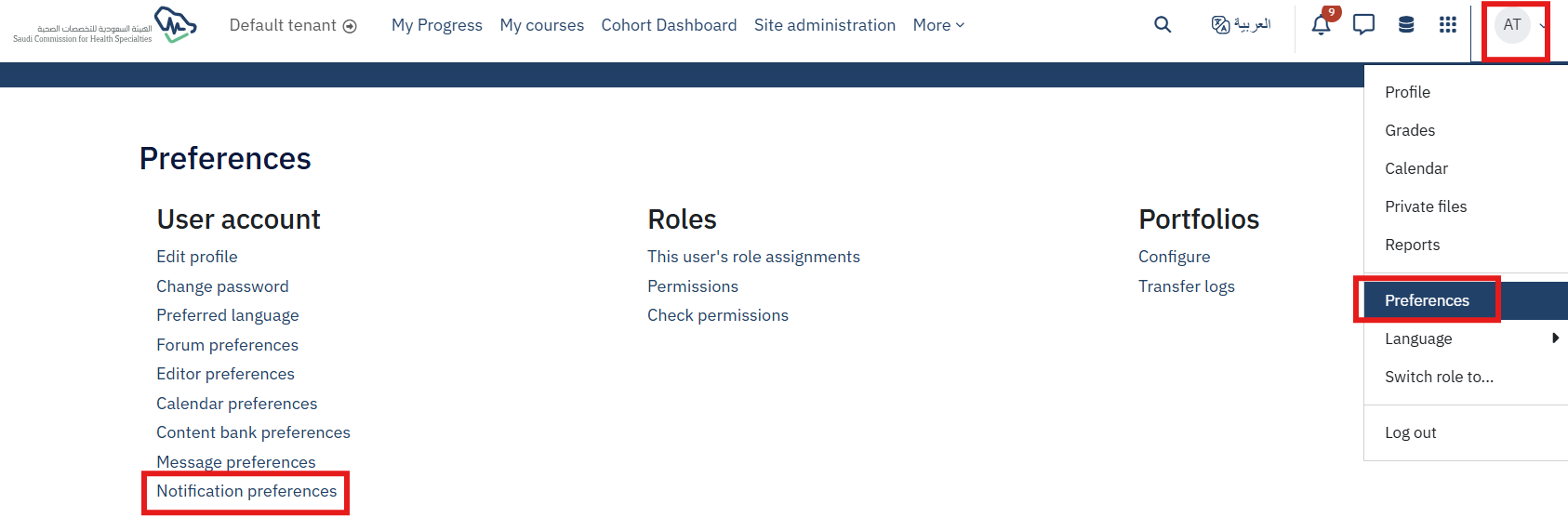
Managing notification settings helps supervisors stay informed about relevant learning activities and platform updates.