Trainee Guide
5. Using the ePortfolio
This section explains how to access your ePortfolio, export certificates, and use your portfolio to organise and present your learning achievements.
5.1 Accessing Your ePortfolio
The ePortfolio can be accessed directly from the user area.
To access your ePortfolio:
Select ePortfolio.
You will be redirected to your personal portfolio space.
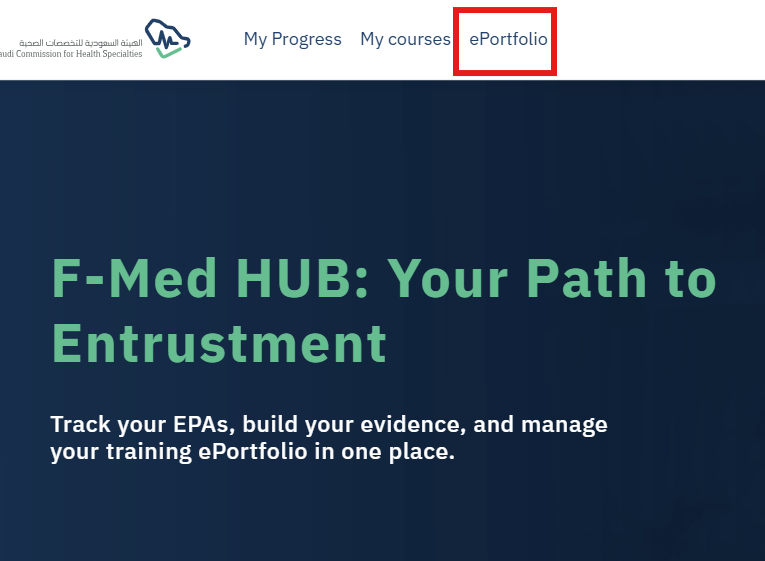
The ePortfolio provides a dedicated environment where trainees can manage their learning records, achievements, and evidence collected during their training.
5.2 Exporting Certificates to Your ePortfolio
Completed certificates can be exported from the learning platform and added to your ePortfolio as evidence of completed training.
To export a certificate:
From the user menu, access your profile section.
Choose "My certificate to Mahara".
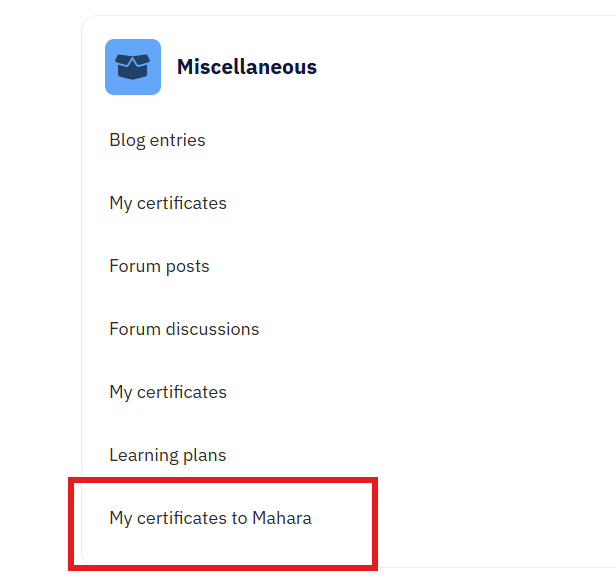
Select the option to export or share the certificate with your ePortfolio.
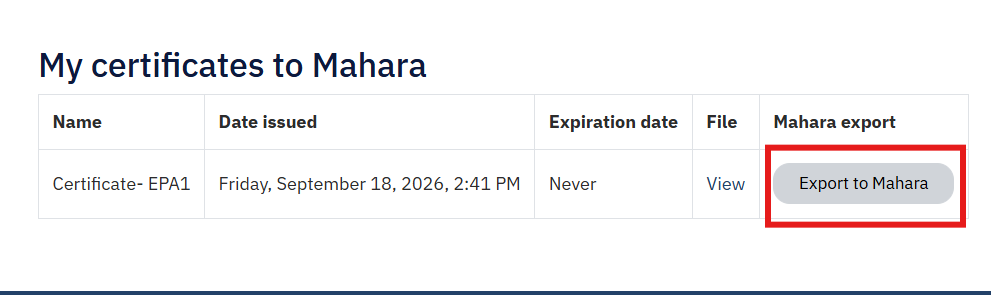
The certificate will become available within your ePortfolio, under Files > Moodle Exports.
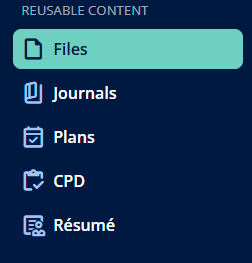

Adding certificates to your ePortfolio allows you to keep a central record of your completed training achievements.
5.3 Overview of Your ePortfolio
The ePortfolio provides different tools to help you organise and present your learning achievements.
You can use your ePortfolio to build a personal record of your learning journey and share relevant information.
Your ePortfolio helps you maintain a record of your learning activities, certificates, and achievements throughout your training journey.
5.4 Creating and Managing Portfolios
Portfolios can be a page or a collection.
Page
A page contains a selection of artefacts which you arrange and present to others. These may include:
- selected files
- résumé details
- text (your added commentary, instructions or orientation)
- journal posts
- video and audio files
- and more
Collection
A collection is a series of pages that makes it easier to navigate through the content in a logical order, without putting everything on a single page.
Tip: You can re-use the artefacts you have collected in as many pages as you like.
To create a new portfolio:
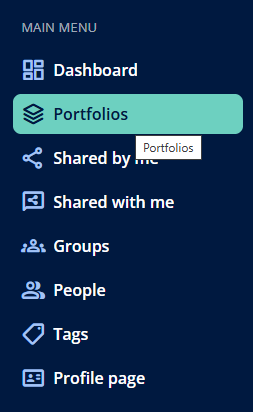
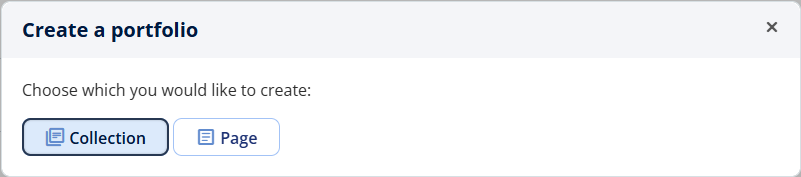
Click on Portfolios, and select the Create button.
Choose Collection or Page to start from scratch.
To copy an existing portfolio:
Select the Copy button to choose an existing page or collection as the basis for a new portfolio.
Good to know: You will see all your personal portfolios, as well as portfolios of others that they have allowed to be copied and to which you have access.
Viewing portfolio details
Select the arrow icon next to a portfolio to see more details.

Portfolio actions
The items in the Actions menu depend on the status of the portfolio, i.e. whether it is submitted for assessment, released, or a regular portfolio.
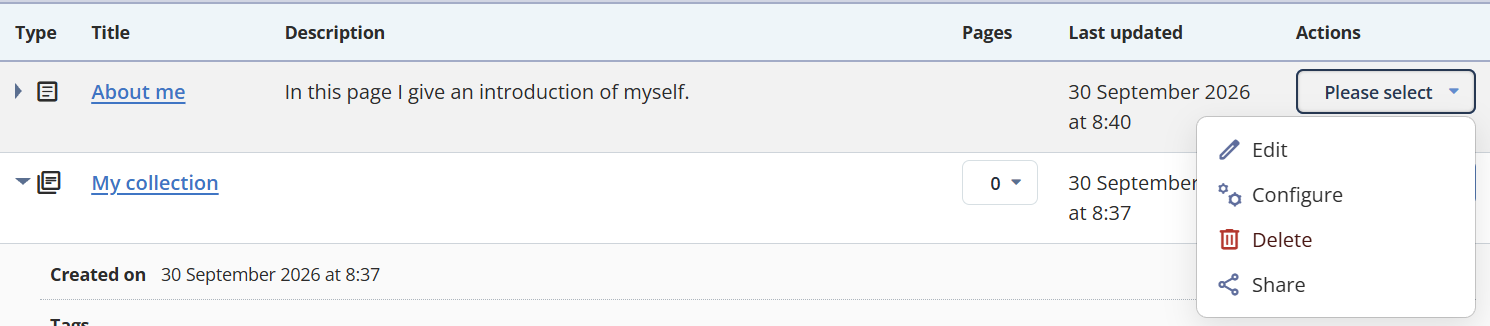
| Action | What it does |
|---|---|
| Edit | Make changes to your portfolio. |
| Manage pages | For collections only: add or remove pages. |
| Configure | Change the settings of your portfolio. |
| Delete | Delete the portfolio. For a collection, all pages within it are also deleted. |
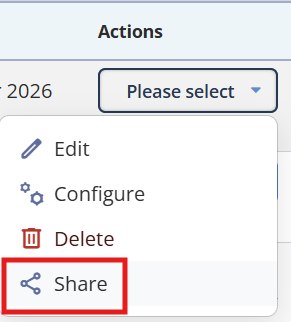
| Share | Share your portfolio with others. |
| View original portfolio | If you submitted a portfolio or it has been released, access the original portfolio from this menu. |
| Original portfolio deleted | Shown if you submitted or released a portfolio but then deleted the original. You can no longer navigate to it. |
Important: Deleting a collection also deletes every page inside it. Check the contents before you confirm.
5.5 Adding a Page and Editing Its Settings
Add a new page to your portfolio when you want to display artefacts together, for example to:
- present them to others
- show your progress in a project
Page navigation bar
You can add and remove content from a portfolio page on the Edit page screen.
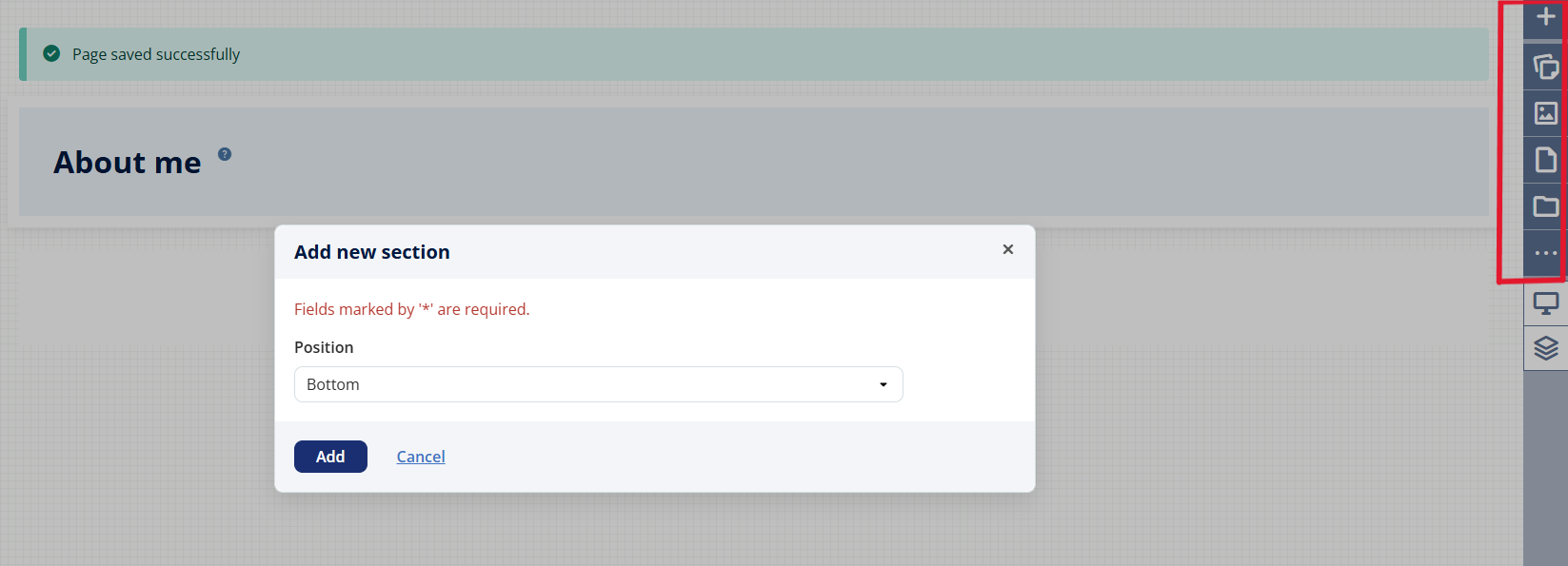
Good to know: The page navigation bar stays fixed on the right-hand side of the screen, so you can reach its buttons on short and long pages without scrolling.
To add a section to a page:
Drag the Add a new section button onto the page, or select it, to place a section.
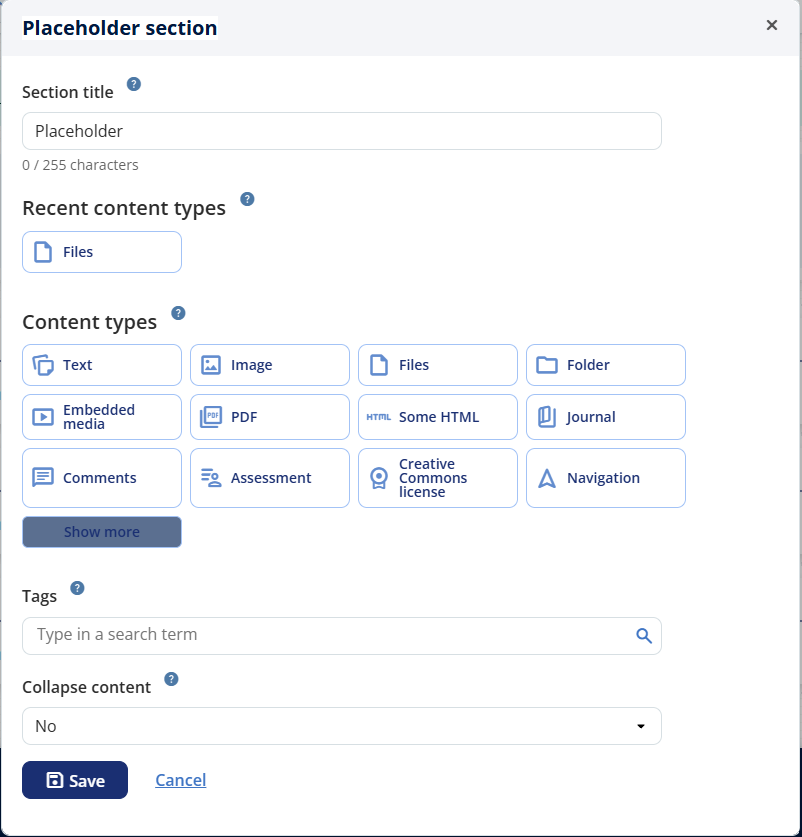
Once the section is on the page, the section configuration window opens. Select the section type you want to use.
5.6 Sharing a Portfolio
To share a portfolio:
Select the Share button.
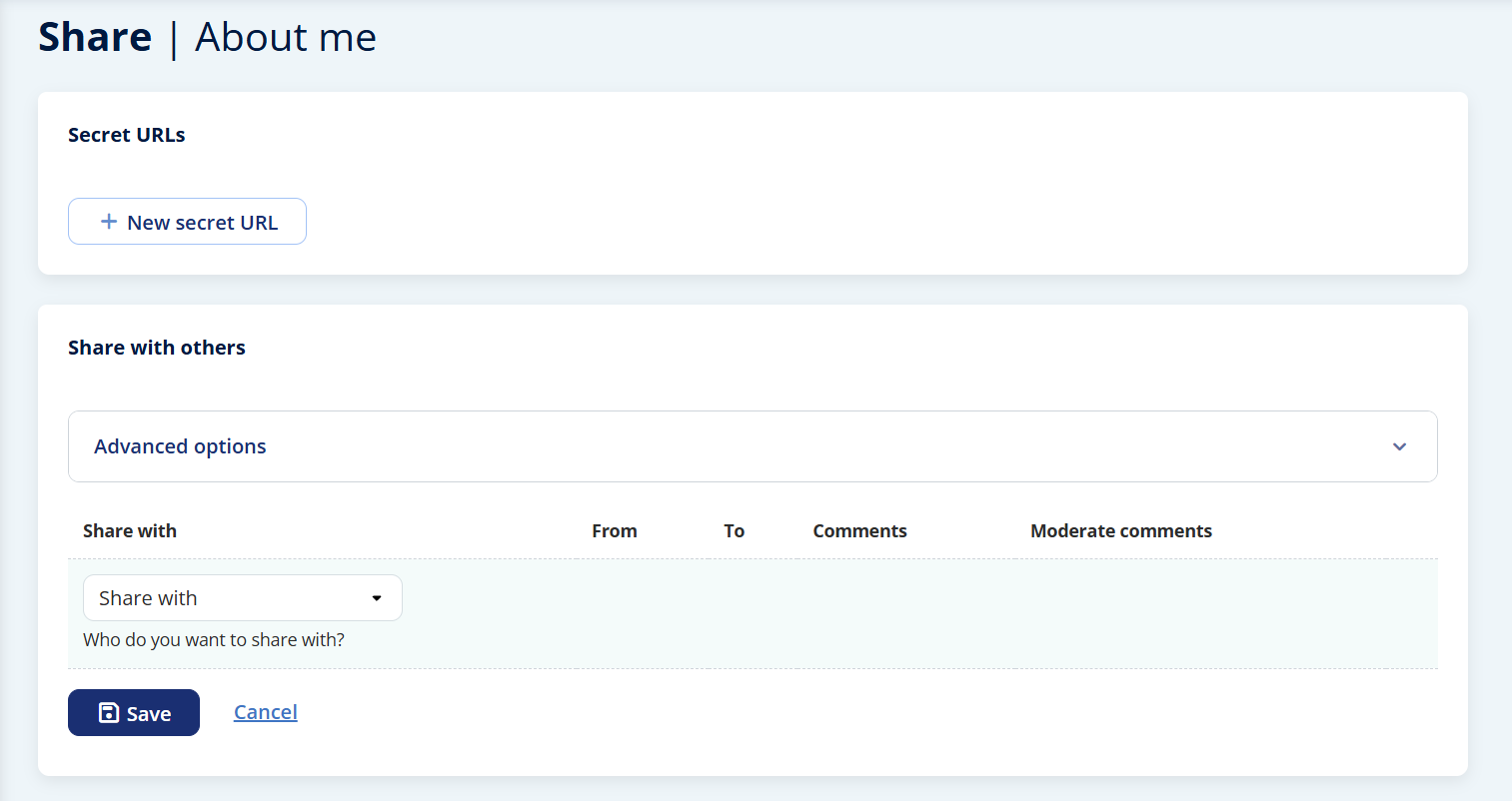
Secret URLs: You can set up a secret URL for your page.
Share with others: You can share your page with people who have an account on the site.
Select Save to apply the changes to the sharing permissions, or Cancel to discard them.
Your ePortfolio helps you maintain a record of your learning activities, certificates, and achievements throughout your training journey.