Trainer Guide
1. Accessing the Platform
This section explains how to access the learning platform and navigate the main areas available to supervisors. These tools allow you to monitor trainee progress, access assigned courses, and stay updated on relevant learning activities.
1.1 Logging into the Platform
To access the learning platform, follow the steps below.
Steps
Open the learning platform URL.
Click Log in through Mumaris.

Once you are logged in, complete the information requested in the required fields.
1.2 Navigating the Platform
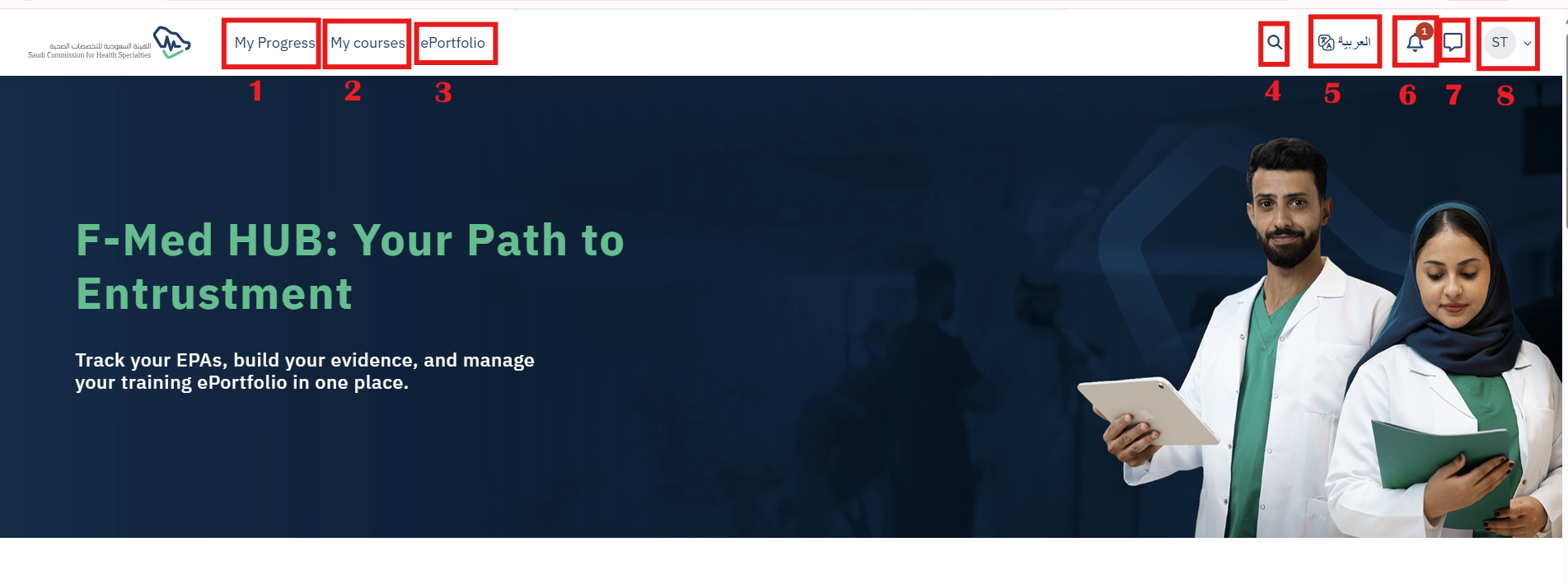
My Progress
View the trainee’s learning journey and track their training activities, completion status, and overall progress across the platform.
My Courses
Access the courses where you are assigned as a supervisor. From here, you can follow learner participation, review course activities, and support learners without modifying course content or settings.
ePortfolio
This feature allows trainees to access and manage available portfolio evidence and learning records associated with their training activities.
Search
Find courses, content, and other information available on the platform using the search functionality.
Language
Change the platform interface language to Arabic.
Notifications
Check this area to stay updated on important course activities, such as announcements, assignment updates, forum interactions, and other relevant alerts.
Messages
Access Moodle’s messaging area to view and manage conversations with other users, depending on the communication settings available on the platform.
User Profile Menu
Explore your account options, including your profile information, preferences, personal settings, and other available features related to your user account.
Understanding the platform navigation areas will help you efficiently monitor trainee activities and access the tools available to support the learning process.