Trainee Guide
1. Accessing the Platform
This guide introduces the essential platform functions required throughout your training. You will learn how to log in, manage your account, and navigate your personal learning area. These tools allow you to access courses, monitor progress, receive updates, and manage your learning activities.
1.1 Logging into the Platform
To access the learning platform, follow the steps below.
Steps
- Open the learning platform URL.
- Click to Log in through Mumaris.

3. Once you are logged in, complete the information requested in the required fields.
1.2 Managing Your Account
Your account provides access to your personal information and preferences. You can review your profile and update your password when required.
Accessing Your Profile
The user profile contains personal information associated with the trainee's account.
To access your profile:
- Select your name or profile icon in the top-right corner.
- Select Profile.
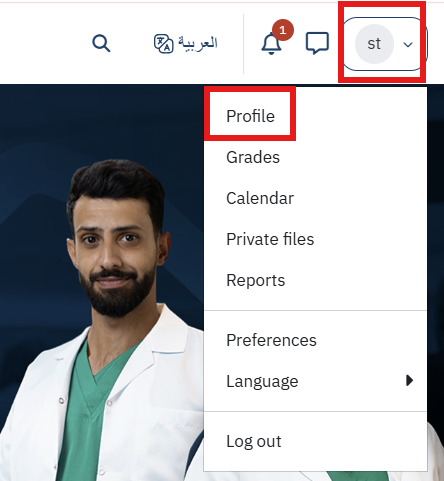
From the profile page, you can review your information and access relevant user options.
1.3 Understanding Your User Area
After logging in, you are directed to your personal learning area. This area provides access to courses, activities, notifications, and personal information.
The main elements of the user area include:
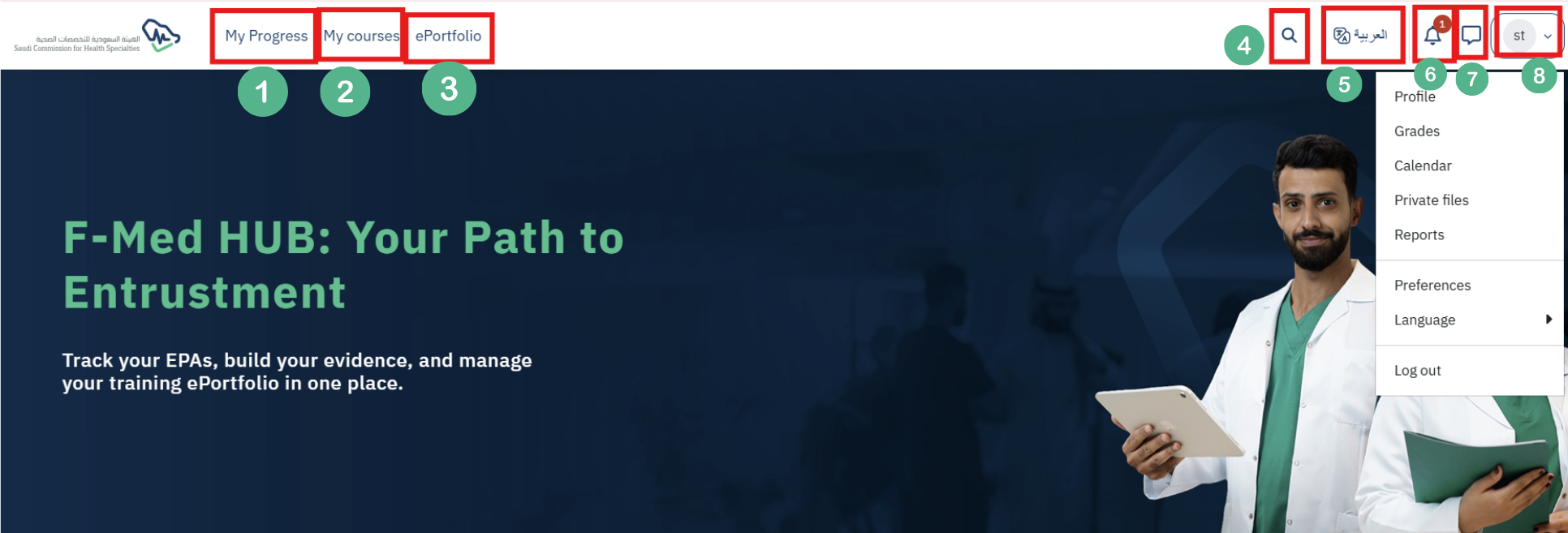
My Progress
The My Progress section allows you to monitor your learning journey and track the completion status of your assigned courses and activities.
Trainees can use this area to:
- View completed and pending courses.
- Check activity completion status.
- Monitor progress toward training requirements.
This helps you identify remaining activities and stay on track with your learning objectives.
My Courses
The My Courses section provides access to all courses assigned or available to you.
From this area, you can:
- Open enrolled courses.
- Continue unfinished activities.
- Review completed courses.
- Access learning materials.
Each course displays progress indicators showing the completion status.
ePortfolio
The ePortfolio section provides access to the trainee’s personal learning portfolio. It allows trainees to document their learning experiences, store evidence of completed activities, and showcase their achievements throughout their training.
Search
The Search icon allows you to quickly find courses, activities, or information available on the platform.
Language Selection
The Language Selection option allows you to switch the platform interface language between Arabic and English.
Notifications
The Notifications icon displays important updates related to your learning activities, such as course announcements, deadlines, assessment updates, and other platform alerts.
Messages
The Messages icon provides access to communication features available on the platform, allowing you to view and manage your messages.
User Menu
The User Menu provides quick access to personal tools, including:
- Profile
- Preferences
- Grades: allows you to view results from completed assessments and activities.
- Calendar
- Logout: when using shared accounts or devices, remember to log out after finishing.
Familiarising yourself with these areas will help you navigate the platform efficiently and access the learning activities, information, and tools required throughout your training.